Enture Machines
Enture Machines are a way of looking into logically grouped parameters based on actual machines. This creates a digital twin of the machine on the site.
Adding Machines to Workspace
- Choose machines from the menus.
- Turn on the settings mode (top right corner).
- Click the plus button on the top right corner to add the workspace.
- A tab will slide up from the bottom where you can:
- Choose the workspace from the drop-down.
- Enter the name and description for the machine.
- Click the Submit button.
- The machine will be displayed under the chosen workspace.
Machine Code
A machine can optionally be given a Machine Code — a short code that's unique across your organisation, separate from its display name. It isn't required, and most places in Enture that refer to a machine still use its name.
The Machine Code exists so machines can be referred to consistently in bulk spreadsheet uploads, such as the Machine Production Planner's CSV upload, where a short stable code is easier to type correctly across many rows than a full machine name.
Set or change it from the Machine Code field on the machine's create or edit form, alongside its name and description. Leave it blank if you don't need it — nothing else in the platform requires a machine to have one.
Attaching Parameters to Machines
- Click on the machine you have created.
- You will see a page similar to the one below.
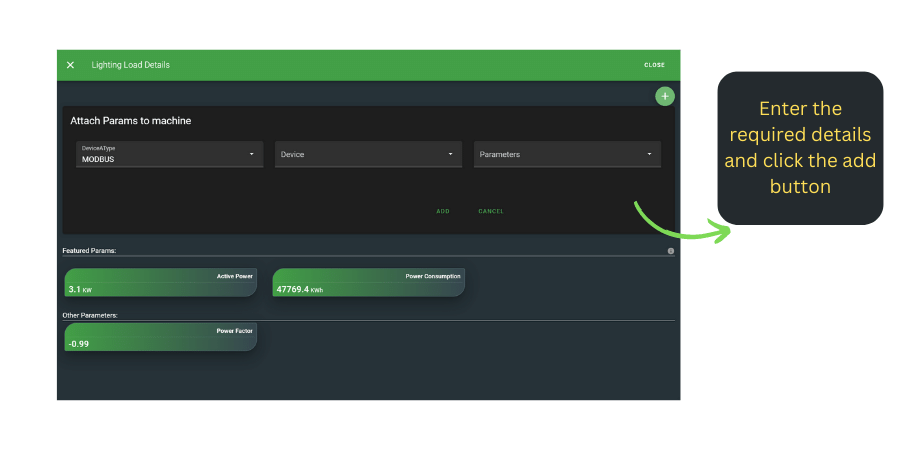
- Using the plus option, attach parameters to the machine by entering:
- Device type
- Device
- Parameters (from the drop-down list)
- Click the Add button.
- You will see featured parameters and other parameters.
- The added parameters will be displayed under "Other Parameters".
- Featured parameters will be highlighted on the machine overview.
-
You can remove a parameter from the featured list using the "Remove from Featured" option (appears when you hover over the featured list parameters).
-
Clicking View Details will show the parameter details.
Backing Up and Restoring Parameters
Any machine can have a snapshot of selected parameter values saved and, later, written back down to the machine — useful for capturing a known-good configuration before a drive replacement, a firmware update, or a risky manual change, so you have something to restore from if things go wrong.
Write permission required
Backing up and restoring parameters requires the same permission as writing individual parameter values. If you don't see the Param Backups tab, you don't have this permission — contact your platform administrator.
Creating a backup
- Open the machine's detail page and click the Param Backups tab.
- Click Backup Params.
- Select the parameters you want to include in the snapshot.
- Give the backup a name (e.g. "Pre-replacement baseline") so you can identify it later.
- Click Save Backup. The value each selected parameter is showing right now is captured into the snapshot.
You can create as many backups as you like — each is saved separately with its own name and date, so you always have a full history to choose from.
Viewing a backup's values
Click View on any backup's row to open a read-only list of every parameter it contains, with two columns:
- Saved Value — what was captured when the backup was made
- Current Value — the parameter's live value right now
Any parameter whose current value no longer matches the saved one is marked Differs, so you can see at a glance what a restore would actually change before you commit to it.
Downloading a backup as CSV
Click Download CSV on any backup's row to save its parameter values to a CSV file on your computer — useful for record-keeping, sharing with a colleague, or reviewing outside the platform. The file lists each parameter's name, unit, and saved value.
Restoring a backup
- On the Param Backups tab, find the backup you want to restore in the list.
- Click Write Params to Machine.
- Confirm the action.
Every parameter value saved in that backup is sent back down to the machine. This writes directly to the device — double-check you've selected the right backup before confirming, especially if the machine is currently running.
Delivery isn't guaranteed to be applied
As with any manual parameter write, Enture confirms the value was sent to the machine, not that the machine accepted or applied it. If a restore doesn't appear to have taken effect, check the parameter's current value afterwards.
Deleting a backup
Use the delete (bin) icon on the backup's row to remove it. This only deletes the saved snapshot — it has no effect on the machine's current configuration.